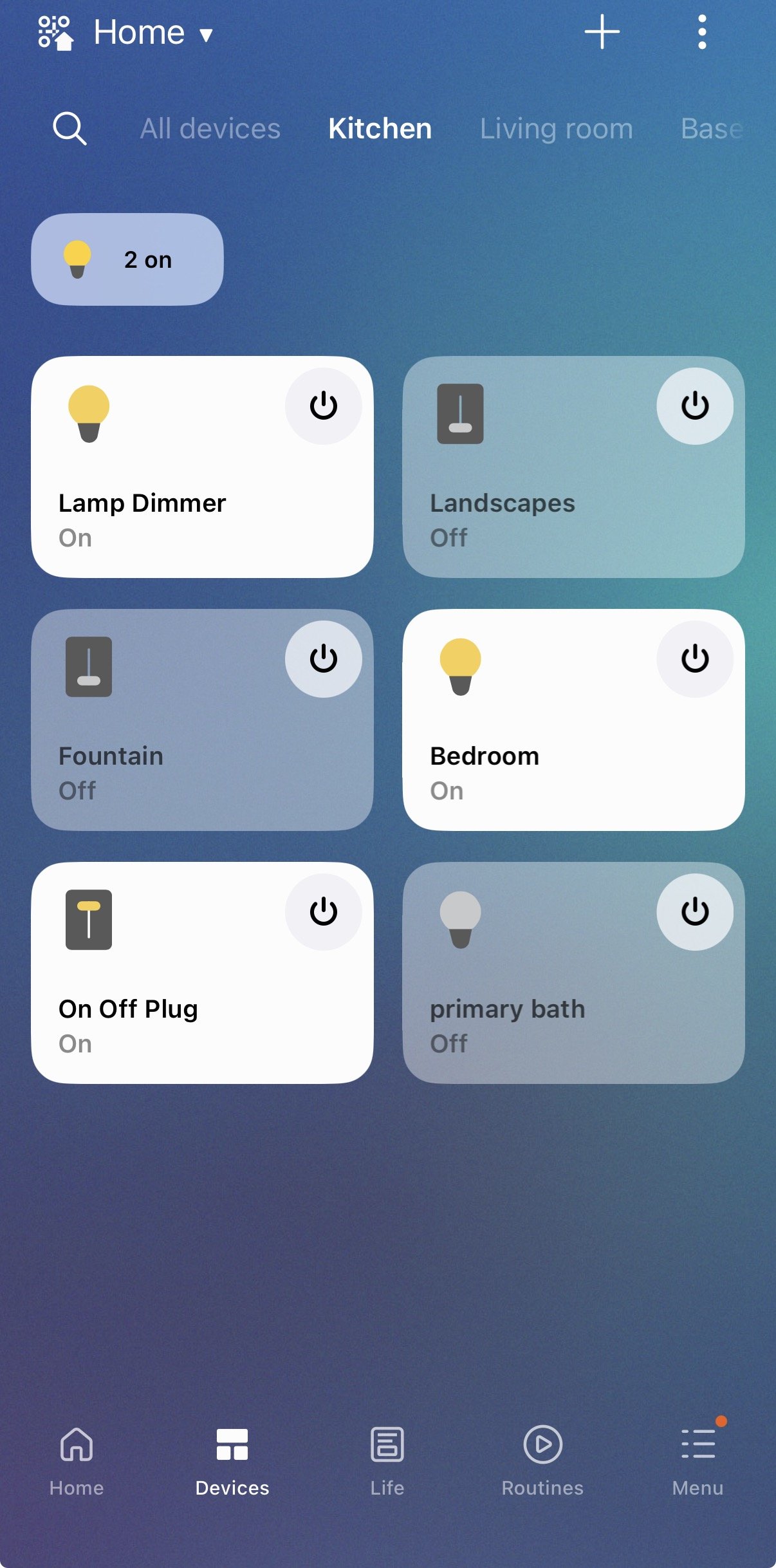
With Insteon Hub 2 (2245-222) and SmartThings, you can control Insteon-connected lights and appliances from your Samsung SmartThings compatible TV screen or directly via the SmartThings mobile app.
Add Insteon Hub account to the Smartthings App
Step 1
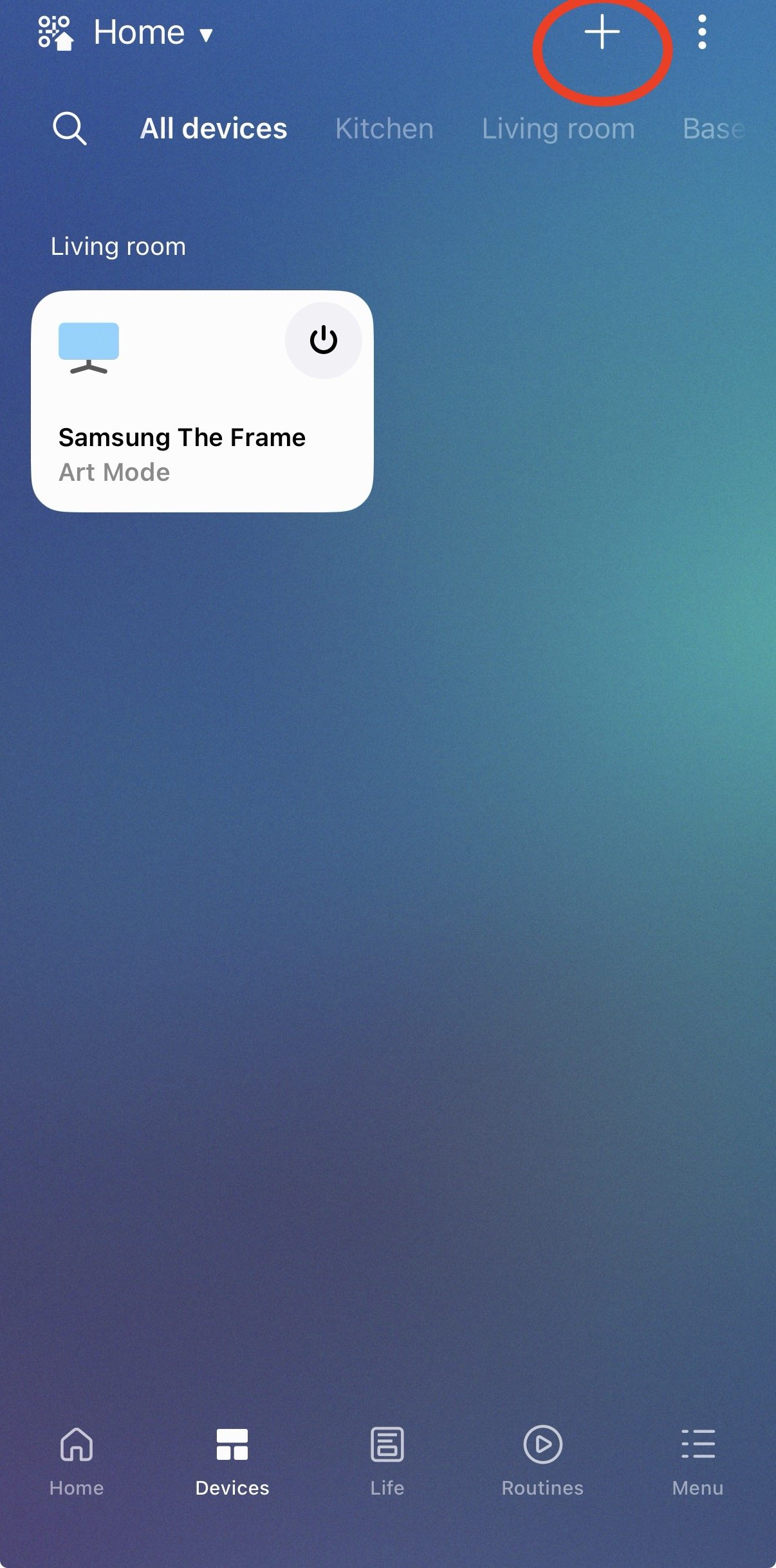
Launch the SmartThings app and tap the “+” menu option at the top right of the screen.
Step 2
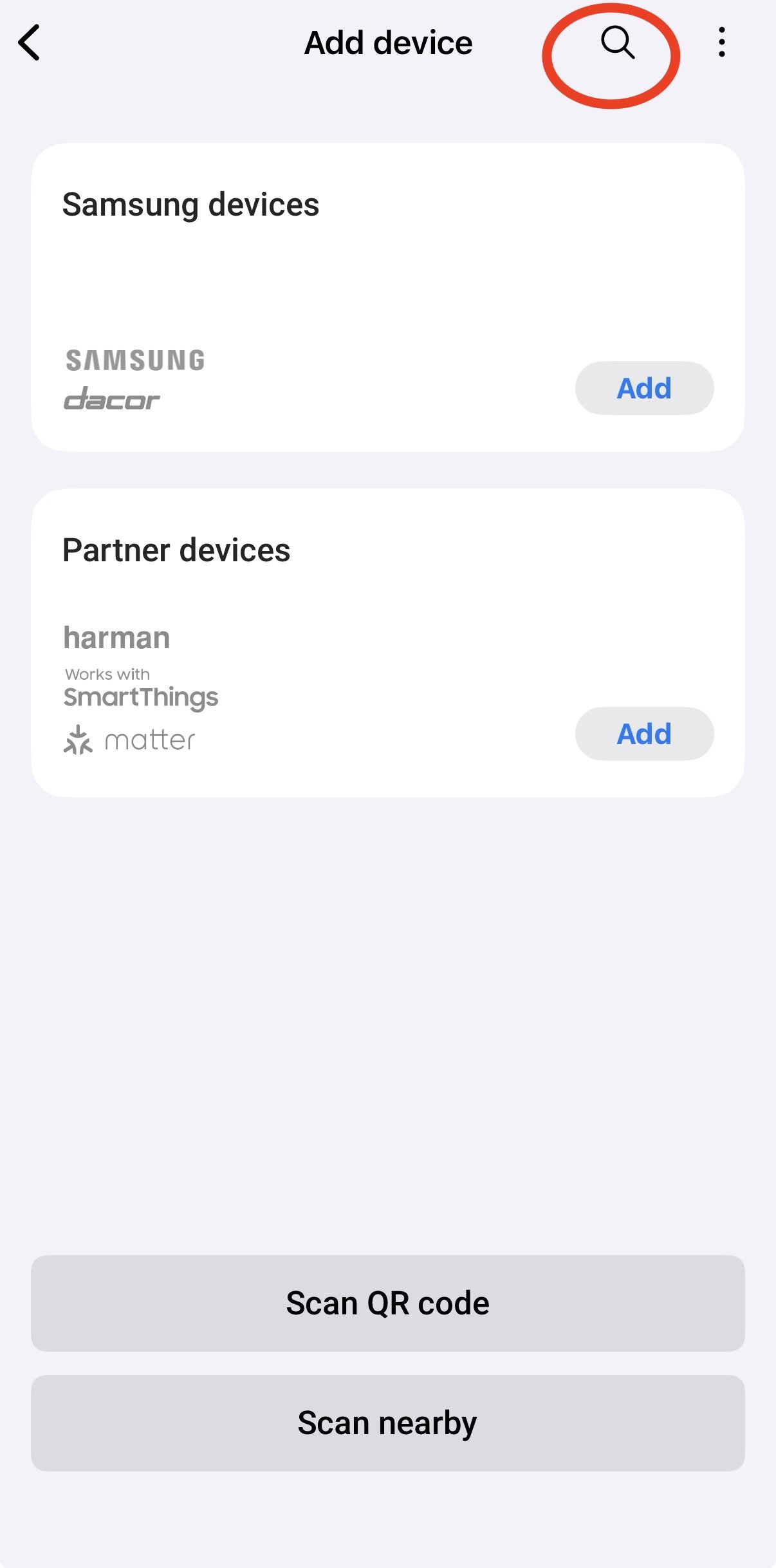
Tap the search icon located in the top right of the screen.
Step 3
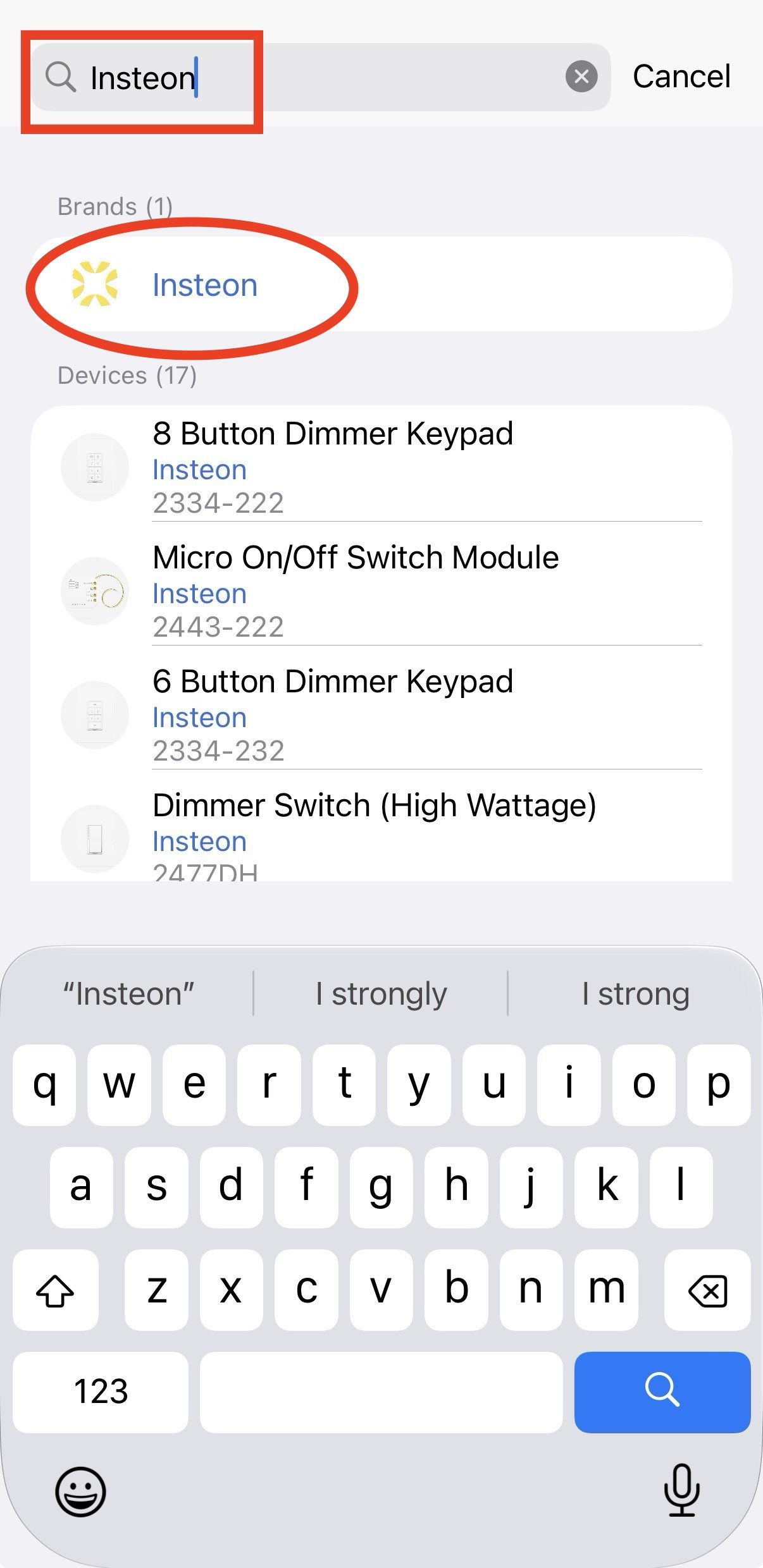
Search “Insteon” and then tap Insteon name under Brand list.
Step 4
Tap on “Link account”
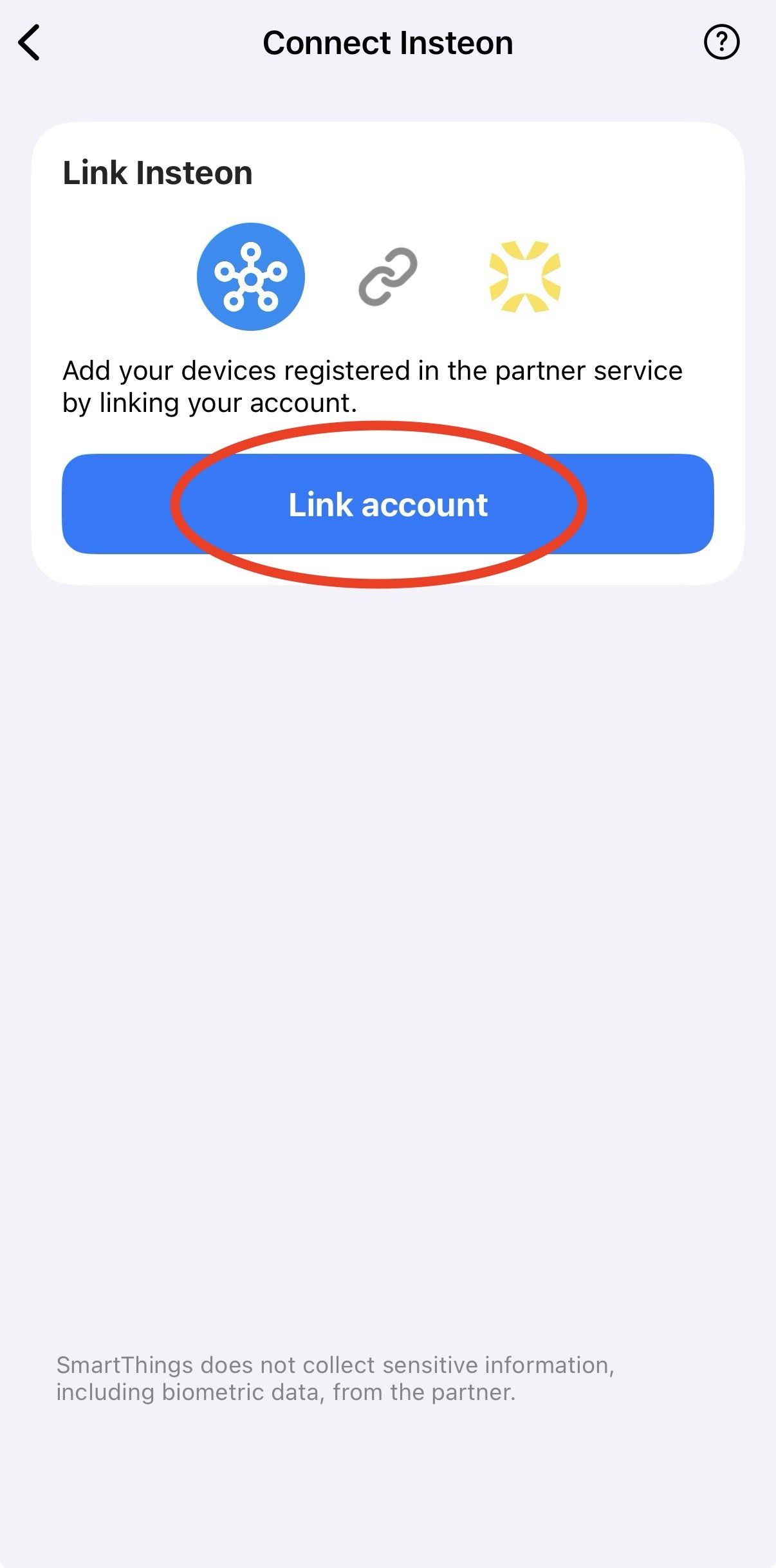
Step 5
To connect your Insteon Hub to Samsung SmartThings, you will need to enter your Insteon Hub account information and then tap “Sign In”.
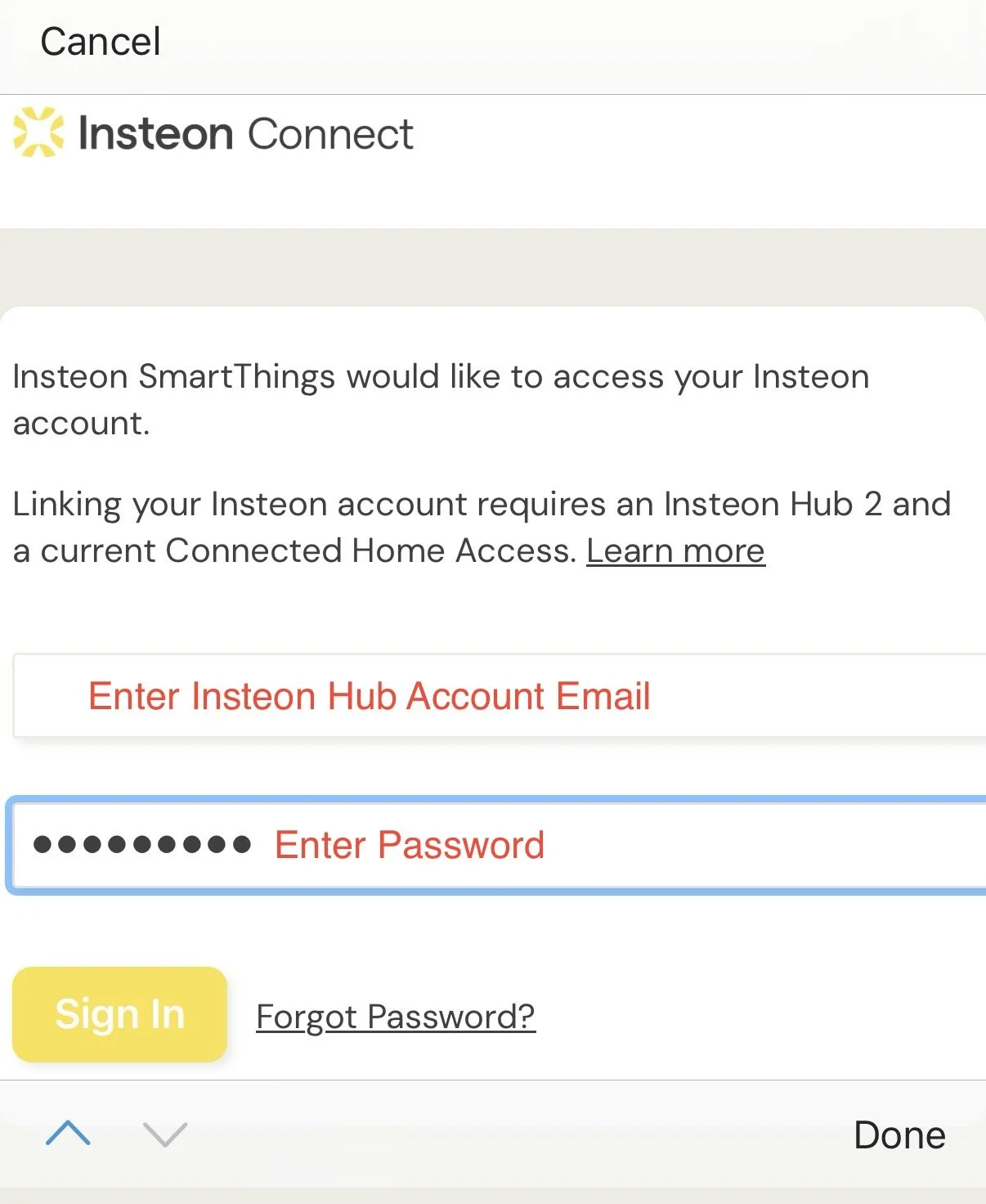
Step 6
After a moment you should see that Insteon has been successfully linked and a list of compatible devices. Tap the Done button to finish.
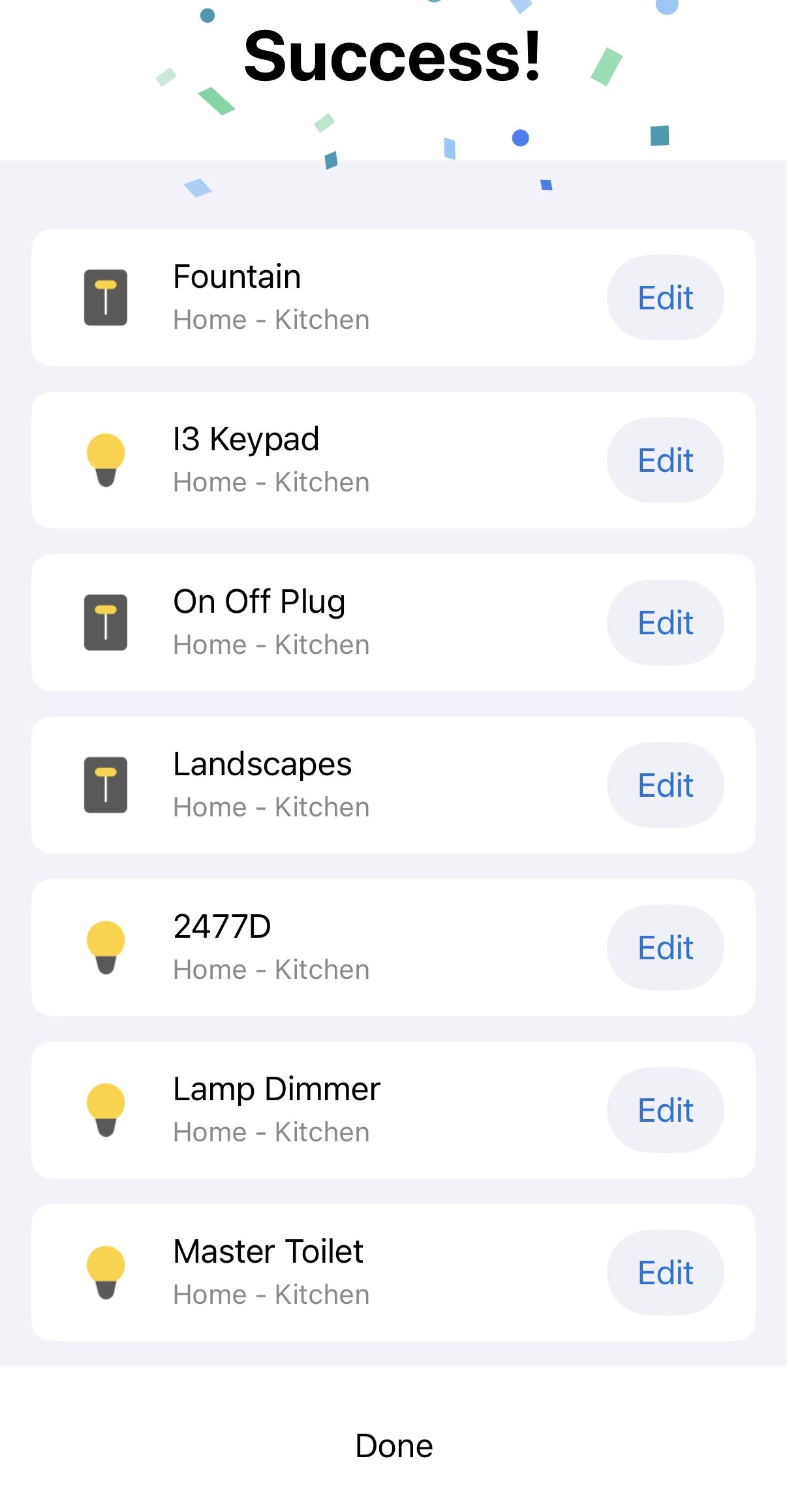
Step 7
You’ll be taken back to your devices page with all the devices listed.
Note: If you add or edit Insteon devices in the future, SmartThings will automatically discover the updates.
Scenes are not supported by Samsung SmartThings at this time. To control multiple Insteon devices via SmartThings, you’ll need to create routines.