Wi-Fi Camera Setup

Getting Started

step-1.png

Connect the ethernet cable to your router and plugin the power adapter. You can disconnect the ethernet cable after setup is complete.

step-2.png

Connect the cables to your camera.

step-3.png
Open the Insteon for Hub app and select Add a Camera. Insteon cameras require Insteon Hub.

Guides, Manuals and Downloads

Quick Start Guide

Owner's Manual

Downloads


Optional Wall Mount

 
step-4-optional.png
 

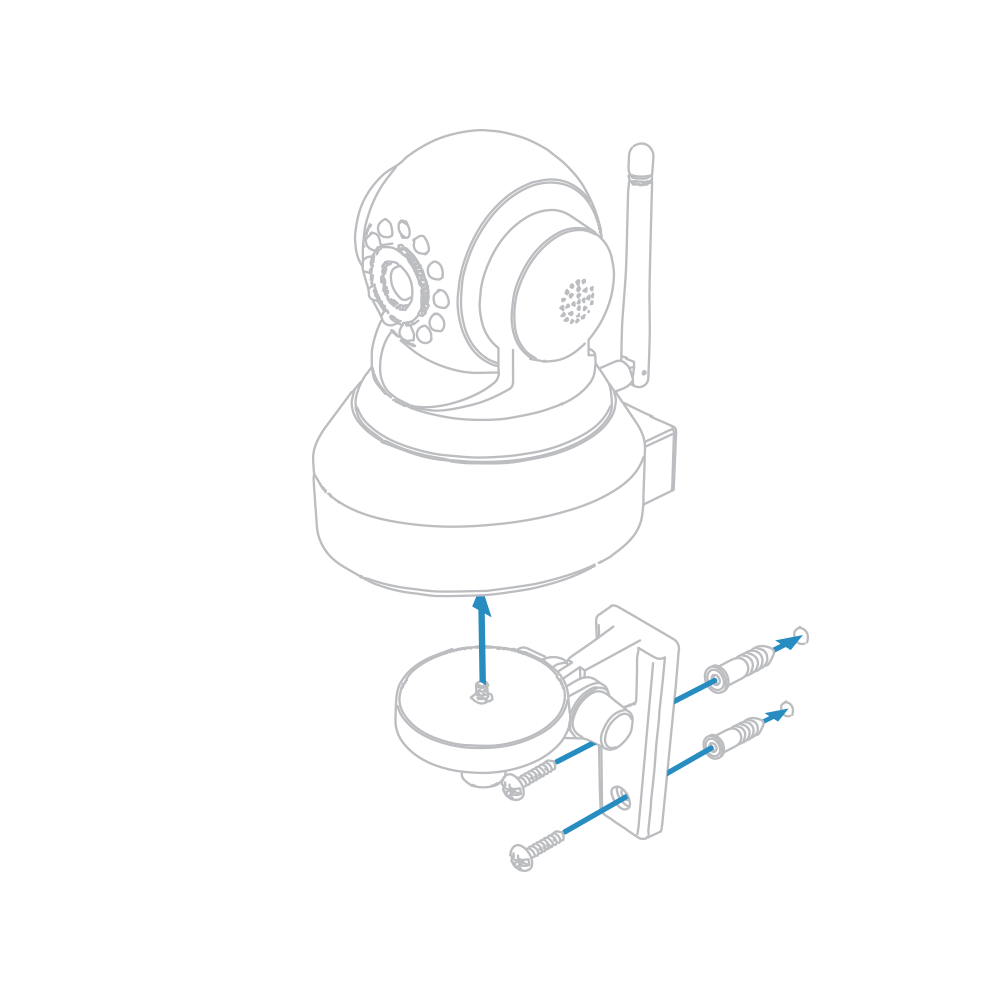
Mount the optional bracket using screws and wall anchors.

 
Different wall materials require different fasteners. Use the appropriate type for your mounting surface. Drywall screws and anchors have been provided. Use caution when drilling holes in walls that may contain live electrical wires.
 

Camera Firmware


Current Wi-Fi Camera Firmware

Device 11.37.2.59
Web UI 2.001.10.9
 

Outdoor Wi-Fi Camera Setup

As of December 31 2016 Insteon will no longer provide technical support for standard definition cameras (75791)

Getting Started

step-1.png

Connect the ethernet cable to your router and plugin the power adapter. You can disconnect the ethernet cable after setup is complete.

step-2.png

Connect the cables to your camera.

step-3.png

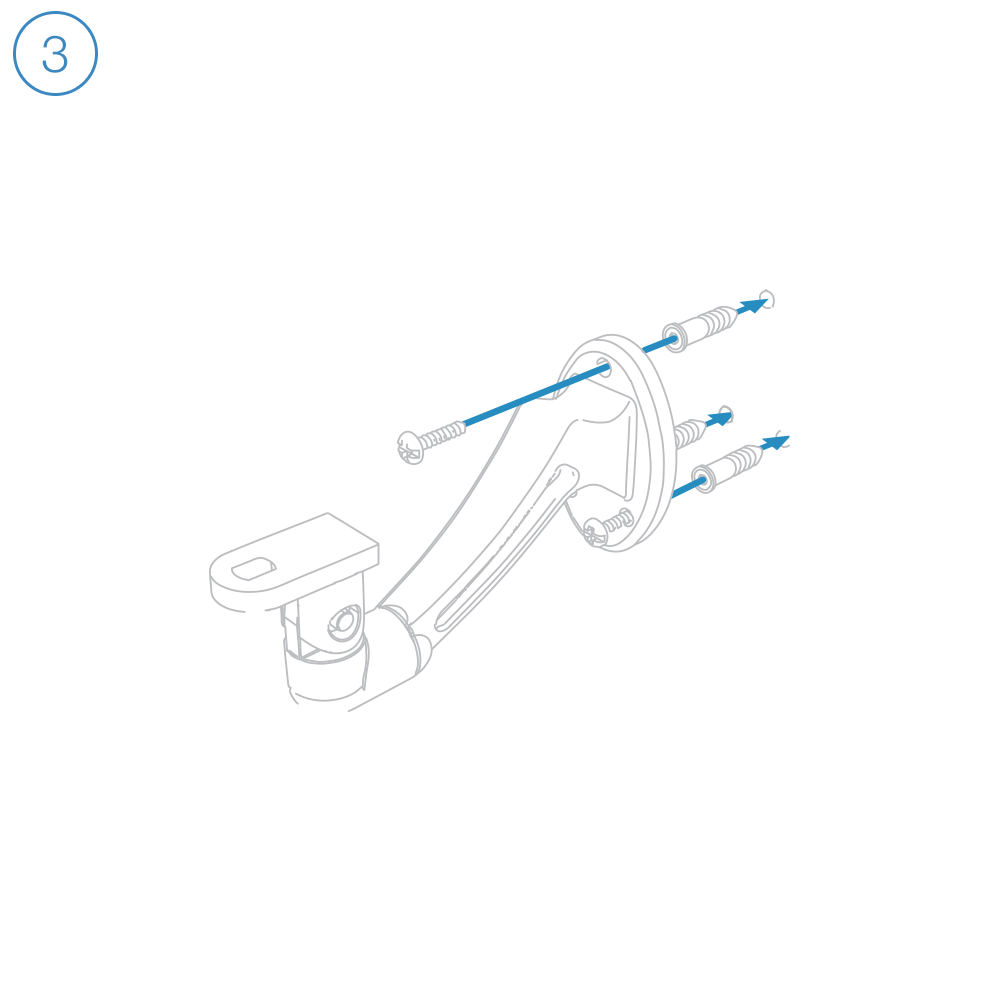
Mount the bracket using screws and wall anchors.

Different wall materials require different fasteners. Use the appropriate type for your mounting surface. Drywall screws and anchors have been provided. Use caution when drilling holes in walls that may contain live electrical wires.
step-4.png

Position your camera and affix it with the set screw. Secure camera connections in a weather-resistant enclosure.

step-5.png
Open the Insteon for Hub app and select Add a Camera. Insteon cameras require Insteon Hub.
 

Guides, Manuals and Downloads

Quick Start Guide

Owner's Manual

Downloads


Camera Firmware

Keep your Outdoor Wi-Fi Camera up-to-date; updates add features, fix bugs and close potential security vulnerabilities.


Current Outdoor Wi-Fi Camera Firmware

Device 11.35.2.59
Web UI 2.001.20.6
 

Outdoor HD Wi-Fi Camera Setup

Getting Started

step-1.png

Connect the ethernet cable to your router and plugin the power adapter. You can disconnect the ethernet cable after setup is complete.

step-2.png

Connect the cables to your camera.

step-3.png

Mount the bracket using screws and wall anchors.

Different wall materials require different fasteners. Use the appropriate type for your mounting surface. Drywall screws and anchors have been provided. Use caution when drilling holes in walls that may contain live electrical wires.
step-4.png

Position your camera and affix it with the set screw. Secure camera connections in a weather-resistant enclosure.

step-5.png
Open the Insteon for Hub app and select Add a Camera. Insteon cameras require Insteon Hub.
 

Guides, Manuals and Downloads

Quick Start Guide

Owner's Manual

Downloads


Camera Firmware

Keep your HD Outdoor Wi-Fi Camera up-to-date; updates add features, fix bugs and close potential security vulnerabilities.

 
hd-outdoor-white.png
 

Current HD Outdoor Wi-Fi Camera Firmware

Camera Revision 5.0 or Later

System 1.9.3.16
Application 2.51.2.33
 

HD Wi-Fi Camera Setup


Getting Started

step-1.png

Connect the ethernet cable to your router and plugin the power adapter. You can disconnect the ethernet cable after setup is complete.

step-2.png

Connect the cables to your camera.

step-3.png

Open the Insteon for Hub app and select Add a Camera. Insteon cameras require Insteon Hub.


Guides, Manuals and Downloads

Quick Start Guide

Owner's Manual

Downloads


Optional Wall Mount

 
step-4-optional.png
 

Mount the optional bracket using screws and wall anchors.

 
Different wall materials require different fasteners. Use the appropriate type for your mounting surface. Drywall screws and anchors have been provided. Use caution when drilling holes in walls that may contain live electrical wires.
 

Basic Troubleshooting


Camera Firmware

Keep your HD Wi-Fi Camera up-to-date; updates add features, fix bugs and close potential security vulnerabilities.

 
hd-indoor-cameras.png


Current HD Wi-Fi Camera Firmware

Camera Revision 1.0 - 3.9
System 1.4.1.9
Application 2.11.1.12

Current HD Wi-Fi Camera Firmware

Camera Revision 4.0 or Later

System 1.9.3.16
Application 2.51.2.33
 

Sonos Player Features and Limitations

Use this article to understand the currently supported features and current limitations of Sonos Player integration.

Supported Features

  • Control play, pause, volume, and tracks for a Sonos Player from an Insteon Keypad, Mini Remote or Wall Switch

  • Trigger a Sonos preset from an Insteon Keypad, Mini Remote or Wall Switch

Controlling a Sonos Player from an Insteon device requires creating a scene. Learn more about creating a scene by viewing this article.


Current Limitations

  • App support is only available on iOS using the Insteon for Hub mobile app

  • Adding playlists is not currently supported on iOS 14+

  • A maximum of four Sonos Players can be added to the Insteon app.

  • Only one Sonos Player can be a member of a scene.

  • At this time, you are unable to edit Sonos Player functions from within a scene. If you wish to change a Sonos function after a scene has been created, delete the scene and re-create the scene with your desired changes.

  • At this time, Insteon app-learned presets do not work with all possible Sonos sources. The following sources have been tested and are known to function:

    • Amazon Music Stations

    • Apple Music Radio

    • Pandora Stations

    • tunein

  • To facilitate preset playback from an Insteon device, the Insteon app lets you learn source presets. Configuring these playlists is done from within the Insteon app when editing a Sonos Player settings.

    • You can learn up to ten Insteon app Sonos presets

    • These presets are shared among all configured Sonos Players

  • Insteon has tested Sonos support with the following Sonos Players:

    • Sonos Play:1

    • Sonos Play:3

    • Sonos Play:5

    • Sonos:Connect

    • Sonos Connect:Amp (ZP series)

    • Other Sonos Players may work but have not been tested by Insteon

  • If your Sonos Players or your router are disconnected from power, it may take up to two minutes before your Sonos Players are rediscovered by the Insteon Hub.


Sonos Player Not Found During Initial Setup

 
no-sonos-found.png
 

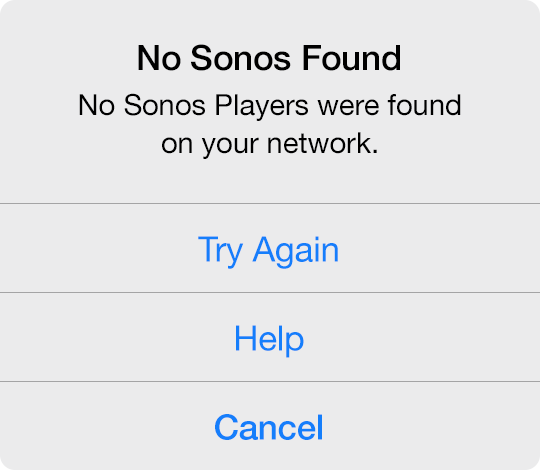
When adding a Sonos Player, you may encounter an alert informing you that the app was unable to find any Sonos Players on your network. There are several reasons why this may occur.

  • Your Sonos Player is unplugged from power

  • Your mobile device may be connected to a different Wi-Fi network than your Sonos Player or your mobile device may be connected to cellular only.

  • Your home's internet router or modem is not functioning properly


Basic Troubleshooting

  1. Ensure that your Sonos Player is connected to a working power outlet. If your Sonos Player is connected via ethernet, check that the ethernet cable is firmly seated. It may be helpful to unplug and reinsert the ethernet cable.

  2. Check to see if you can control your Sonos Player from the Sonos App on your mobile device.

  3. Confirm that your internet router and cable or DSL modem are connected to power and turned on. Learn how to Identify your router and cable or DSL modem.

  4. Try restarting your router and cable or DSL modem.


You Already Have the Maximum Number of Sonos Players Configured

When adding a Sonos Player, you may encounter a message informing you that you have already configured the maximum number of Sonos Players. Insteon Hub supports a maximum of four Sonos speakers.


No Music Playing when Learning a Sonos Preset

 
no-music-paying.png
 

When learning a preset with your Sonos Player, you may encounter an alert informing you that no music was heard while listening to your Sonos Player. For the Insteon app to remember your musical selection in a preset, music must be actively playing from your Sonos Player.

Basic Troubleshooting

  1. Tap the Home button on your mobile device
  2. Navigate to and open the Sonos app
  3. Select the desired music from any of the sources available.
  4. When music begins playing, tap the Home button and return to the Insteon app.
 

Controlling a Sonos Player from an Insteon Device


To control Sonos functions or trigger presets from an Insteon device, create a scene for each desired function.


Create a Scene

Step 1

Open the Drawer and tap Create a Scene

tap-scene.png

Step 2

Give your scene a name that matches its intended function and pick an icon

name-and-icon.png

Step 3

From the Scene Members list of devices, tap the Insteon device or devices that you wish to use to control your Sonos Player.

With Keypads and Mini Remotes, select the corresponding button from the list of device buttons.

tap-keypad.png

Step 4

Tap the Sonos Player that you want to control

tap-sonos-function.png

Step 5

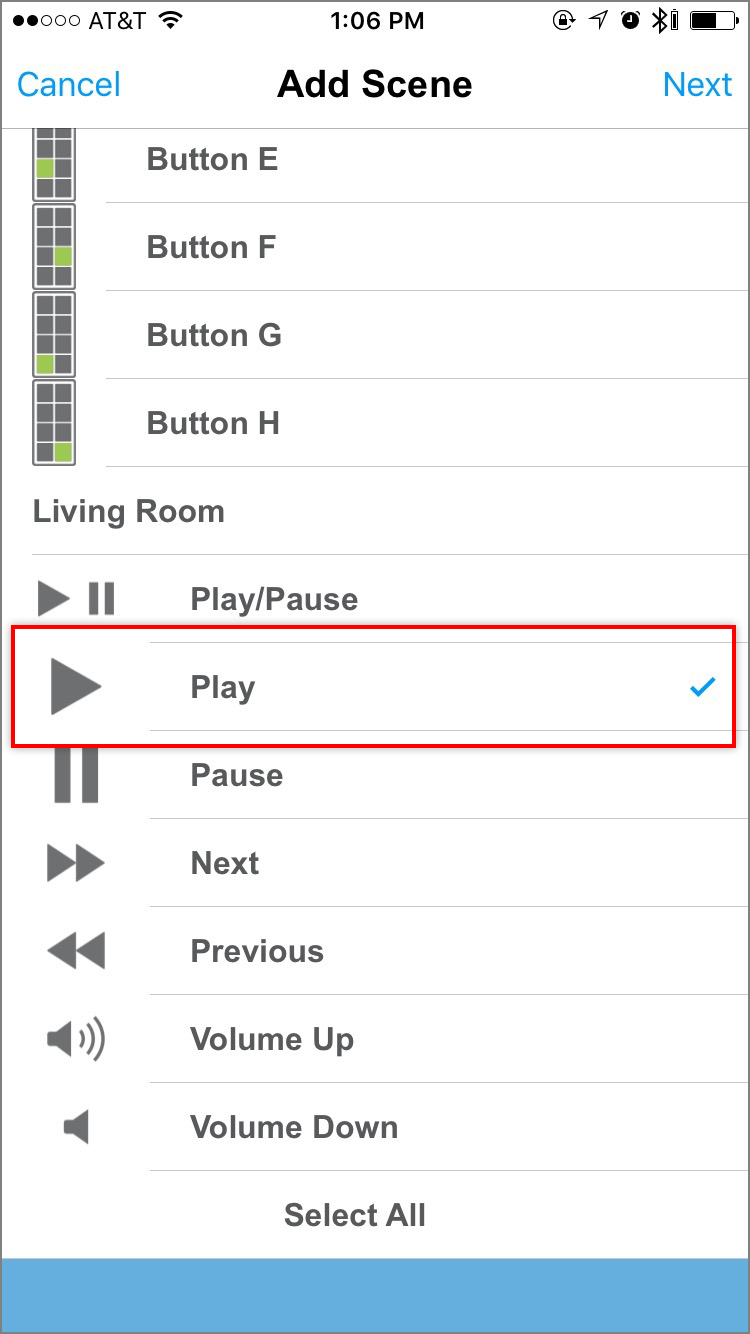
Tap the function you want to control and then tap Next

tap-sonos-function.png

Step 6

For each Insteon device, tap the blue Responder button until it reads "Both" and then tap Done.

Repeat the above steps for each additional Sonos Player function you wish to control.

tap-both.png
 

Additional Sonos Support


Connect to Wi-Fi When Adding a Sonos Player

 
connect-to-wifi.png
 

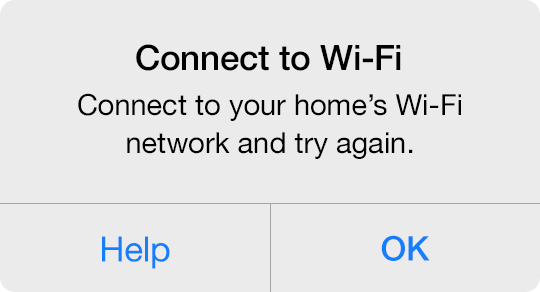
When adding a Sonos Player, you may encounter an alert informing you to connect to your home's Wi-Fi network.


Basic Troubleshooting

Connect your mobile device to your home's Wi-Fi network. You are unable to add a Sonos Player to the Insteon app when on a cellular 3G, 4G or LTE connection.


Connecting to Wi-FI on iPhone, iPad or iPod touch

  1. Tap the Home button on your iPhone, iPad or iPod touch and navigate to Settings.
  2. Tap Wi-Fi
  3. Ensure Wi-Fi is on and tap your home's Wi-Fi network. If you have more than one Wi-Fi router, it is important to join the same Wi-Fi network as that used by your Sonos Player.
  4. Tap the Home button on your iPhone, iPad or iPod touch and return to the Insteon app to complete your Sonos setup.
 

Connecting to Wi-Fi on an Android device

  1. Tap the home button on your Android device and navigate to Settings.
  2. Tap Wi-Fi
  3. Ensure that Wi-Fi is on and tap your home's Wi-Fi network. If you have more than one Wi-Fi router, it is important to join the same Wi-Fi network as that used by your Sonos Player.
  4. Tap the Home button on your Android device and return to the Insteon app to complete your Sonos setup.
 

Something Went Wrong While Configuring Your Camera


somethings-wrong.png
 

When configuring an Insteon Wi-Fi Camera, you may occasionally encounter a message informing you that something went wrong while configuring your camera and to ensure that the ethernet cable is connected. There are several reasons why this may occur.

  • Your Wi-Fi connection is offline

  • Your Wi-Fi Camera was unplugged from ethernet or power


Basic Troubleshooting

  1. Ensure that your Wi-Fi Camera is connected to a working power outlet and that the ethernet cable is firmly seated, even if you intend to use your camera with WI-Fi. It may be helpful to unplug and reinsert the ethernet cable.

  2. Try restarting your Insteon Wi-Fi Camera by unplugging its power cord. Wait about 30 seconds and then reconnect your camera to power.

  3. Ensure that your smartphone or tablet is connected to the same Wi-Fi Network as your Insteon Wi-Fi Camera.

  4. Confirm that your internet router and cable or DSL modem are connected to power and turned on. Learn how to identify your router and cable or DSL modem.

  5. Check that your Wi-Fi router is working by attempting to browse a website using another device or computer in your home.

  6. Try restarting your router and cable or DSL modem.


Something Went Wrong While Configuring the Camera Password


camera-password.png
 

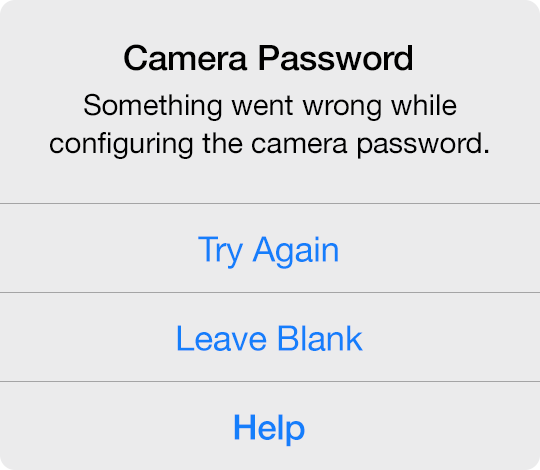
When configuring an Insteon Wi-Fi Camera, you may occasionally encounter a message informing you that something went wrong while configuring the camera password. There are several reasons why this may occur.

  • The password was shorter than 1 character or longer than 12 characters

  • The password included characters other than numbers and letters

  • The password included spaces

The Insteon app should properly restrict entry of passwords such that they do not contain any unsupported or invalid characters. If you are unable to resolve the password following the restrictions above, you can tap Leave Blank to proceed without a camera password. After setup is complete, you can change the password from Edit Camera.


Changing the Camera Password from Edit Camera

Step 1

From Edit Camera, scroll down to Network Settings and tap Password

tap-password.png

Step 2

Replace the blank password with your desired camera password. Ensure your password meets the following criteria:

  • Between 1 and 12 characters long

  • Letters and numbers only

  • No spaces

  • Case sensitive

enter-password.png

Step 3

Tap Done

The Insteon app will update your camera's password and attempt to reconnect.

udpating.png
 

Basic Troubleshooting

If, after changing your camera's password, the Insteon app is unable to connect to your camera, attempt setup of your camera again.

  • Navigate to Edit Camera, scroll to the bottom and tap Delete Camera

  • Add a Device and choose Camera

  • In the list of cameras, your camera should appear as already configured

  • Enter the user name and new password chosen in step 2 above. If you receive an error informing you that the user name or password is incorrect, try using a blank password as it's possible the camera password was not updated.

  • If you are still unable to connect to your camera, follow the steps in this article to factory reset your camera and start again.


Something Went Wrong While Configuring the Camera User Name


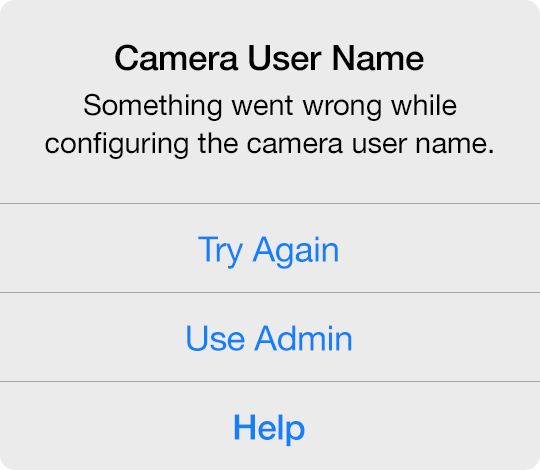
camera-user-name.png
 

When configuring an Insteon Wi-Fi Camera, you may occasionally encounter a message informing you that something went wrong while configuring the camera user name. There are several reasons why this may occur.

  • The user name was shorter than 1 character or longer than 12 characters
  • The user name included characters other than numbers and letters
  • The user name included spaces

The Insteon app should properly restrict entry of user names such that they do not contain any unsupported or invalid characters. If you are unable to resolve the user name adhering to the restrictions above, you can tap Use Admin to use the default camera user name "admin" and complete setup. After setup is complete, you can change the user name from Edit Camera.


Changing the Camera User Name from Edit Camera

Step 1

From Edit Camera, scroll down to Network Settings and tap Username.

tap-username.png

Step 2

Replace admin with your desired camera user name. Ensure your user name meets the following criteria:

  • Between 1 and 12 characters long
  • Letters and numbers only
  • No spaces
  • Case sensitive
dannycam.png

Step 3

Tap Done

The Insteon app will update your camera's user name and attempt to reconnect.

tap-done.png
 

Basic Troubleshooting

If, after changing your camera's user name, the Insteon app is unable to connect to your camera, attempt setup of your camera again.

  • Navigate to Edit Camera, scroll to the bottom and tap Delete Camera.
  • Add a Device and choose Camera
  • In the list of cameras, your camera should appear as already configured.
  • Enter the new user name chosen in step 2 above. If you receive an error informing you that the user name or password is incorrect, try using the user name "admin" as it's possible the camera user name was not updated.
  • If you are still unable to connect to your camera, follow the steps in this article to factory reset your camera and start again.


Unable to Update or Read your Camera's Wi-Fi or Network Settings


When configuring an Insteon Wi-Fi Camera, you may encounter an alert informing you that the Insteon app was unable to update or read you camera's Wi-Fi or network settings. There are several reasons why this may occur.

  • Your camera may have become unplugged from ethernet or power

  • Your iPhone, iPad or iPod touch has been disconnected from your home's Wi-Fi network

  • Your home's internet router is not functioning properly.


Basic Troubleshooting

  1. Ensure that your Wi-Fi Camera is connected to a working power outlet and that the ethernet cable is firmly seated. It may be helpful to unplug and reinsert the ethernet cable.

  2. Confirm that your internet router is connected to power and turned on. Learn how to Identify your router and cable or DSL modem.

  3. Ensure that your smartphone or tablet is connected to Wi-Fi. For setup to complete, your smartphone or tablet must be connected to the same Wi-Fi network to which your Wi-Fi camera is physically connected.

  4. Try restarting your router.


Use Ethernet

If the Insteon app is unable to update your camera's Wi-Fi settings, you can elect to use ethernet instead of Wi-Fi. You can then use manually configure Wi-Fi settings using the camera's web interface. Once your camera is connected to your network using Wi-Fi, re-add the camera as an already-configured camera.